
Run payroll
This page takes you through a month’s run on the Payroll runs page, from opening it to locking it.
Who can open, calculate, submit and return a run: Owner, Payroll admin.
Who can approve and lock a run: Owner, Payroll approver.
Before you start
Section titled “Before you start”- Pay components are set up, and everyone to be paid has pay in force. See Set up pay.
- Leave for the month is decided and timesheets are approved. Unpaid leave and unexcused absence reduce pay only once they’re approved.
- Joiners and leavers have their start and end dates recorded.
Open the run
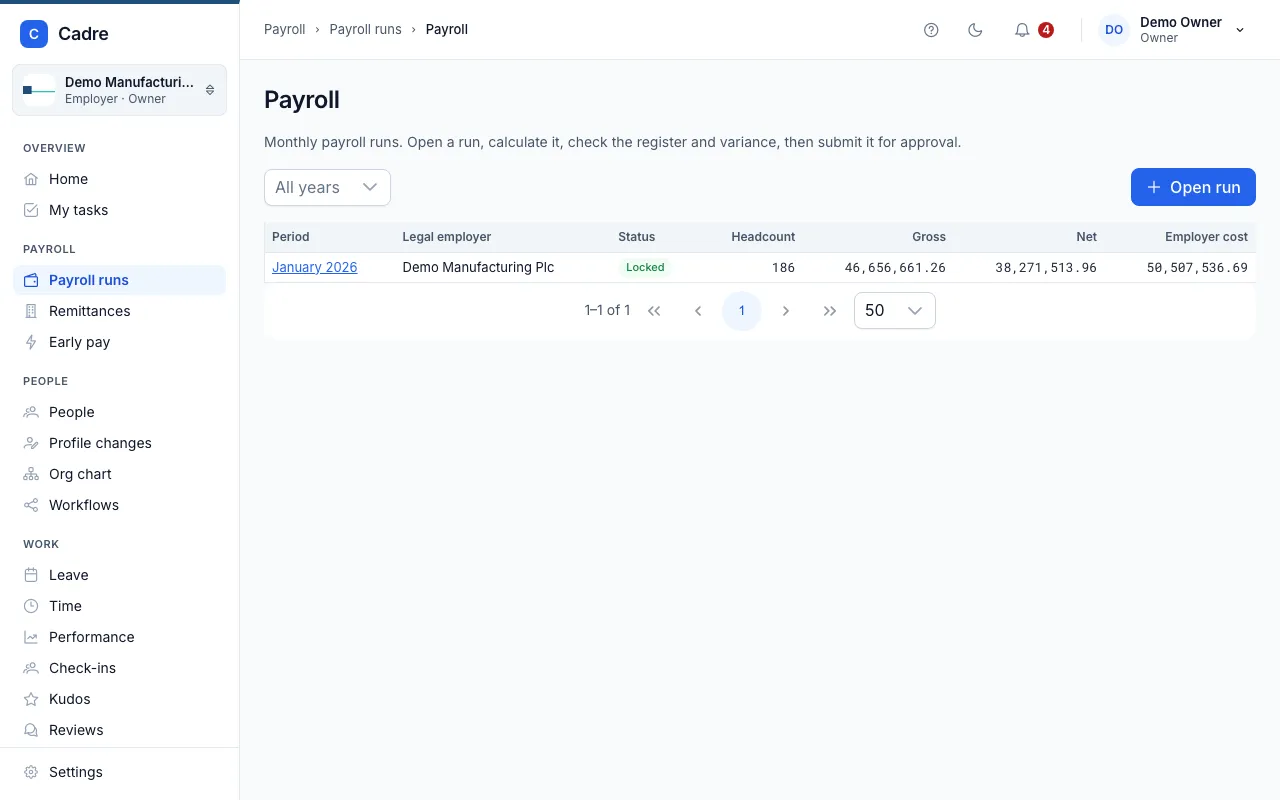
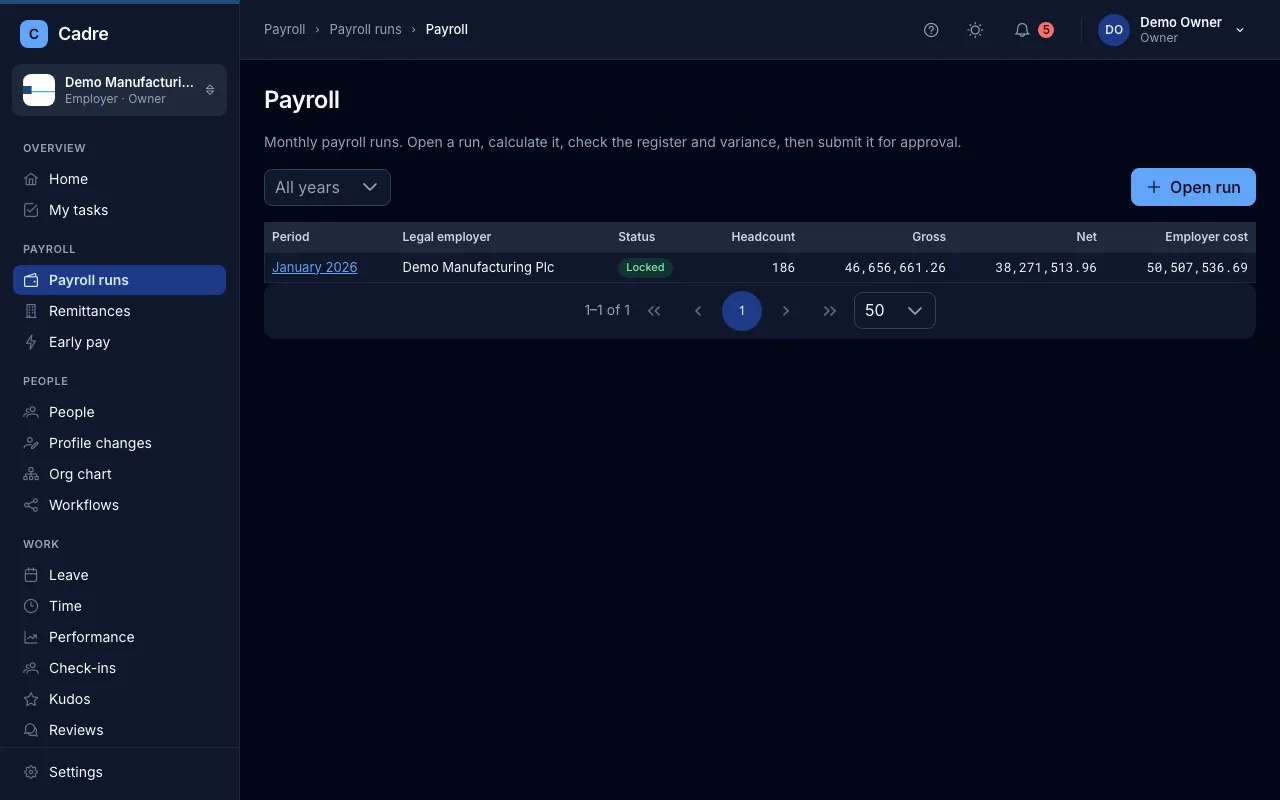
Section titled “Open the run”- Go to Payroll → Payroll runs and choose Open run.
- Choose the Month and Year.
- If you’re an agency, choose who to Run payroll for (the legal employer) and, if you want, limit the run with Include to the people at one worksite.
- Leave Parallel run unticked for a live run. See Parallel runs.
- Choose Open run.
A legal employer can have only one live run for each month.
Calculate
Section titled “Calculate”Open the run and choose Calculate. Cadre calculates every line from the data as it is at that moment:
- everyone employed by the legal employer at any time in the month, plus earlier leavers who still have a final payment due;
- each person’s pay in force on the last day of the month;
- their tax profile, benefits in kind and final payments;
- approved unpaid leave, and unexcused absence on approved timesheets, in the month;
- earned wage advances to take back, if your organisation uses them;
- the statutory rates that apply to the month.
You can calculate a draft as often as you like. Each calculation replaces the figures from the last one. If anything changes after you calculate, for example leave is approved or pay is corrected, calculate again.
Joiners, leavers and part months
Section titled “Joiners, leavers and part months”A person who joins or leaves during the month is paid for the calendar days they’re employed. Approved unpaid leave days and unexcused absence days come off the days paid. The law sets no rule for part months, so this is Cadre’s rule. Pension and NHF are worked out on what is actually paid, and PAYE is worked out on it by the year-to-date method, so a part month is taxed on real figures.
If pay changes part-way through a month, the run uses the pay in force on the last day of the month for the whole month.
Warnings on a line
Section titled “Warnings on a line”A line may carry a warning, marked with an icon in the register. For example:
- the line is prorated, with the days paid;
- unpaid leave or unexcused absence was deducted;
- approved overtime was found but isn’t paid, because Cadre doesn’t pay overtime yet;
- there is no basic salary component, so NHF and the pension base may be understated;
- PAYE is a refund, because more tax was deducted earlier in the year than is due to date;
- net pay is negative.
A run with negative net pay for anyone can’t be submitted until you resolve it.
Check the register
Section titled “Check the register”The Register tab lists everyone in the run: Name, Staff no., Gross, PAYE, Pension (EE), NHF, Net and Employer cost. Use Optional register columns to add Days paid, Voluntary pension, Other deductions, Employer pension and Benefits in kind. Search by name or staff number.
Select a row to open that line. It lists the pay items, any benefits in kind, and How it was calculated: each step of the calculation with its basis.
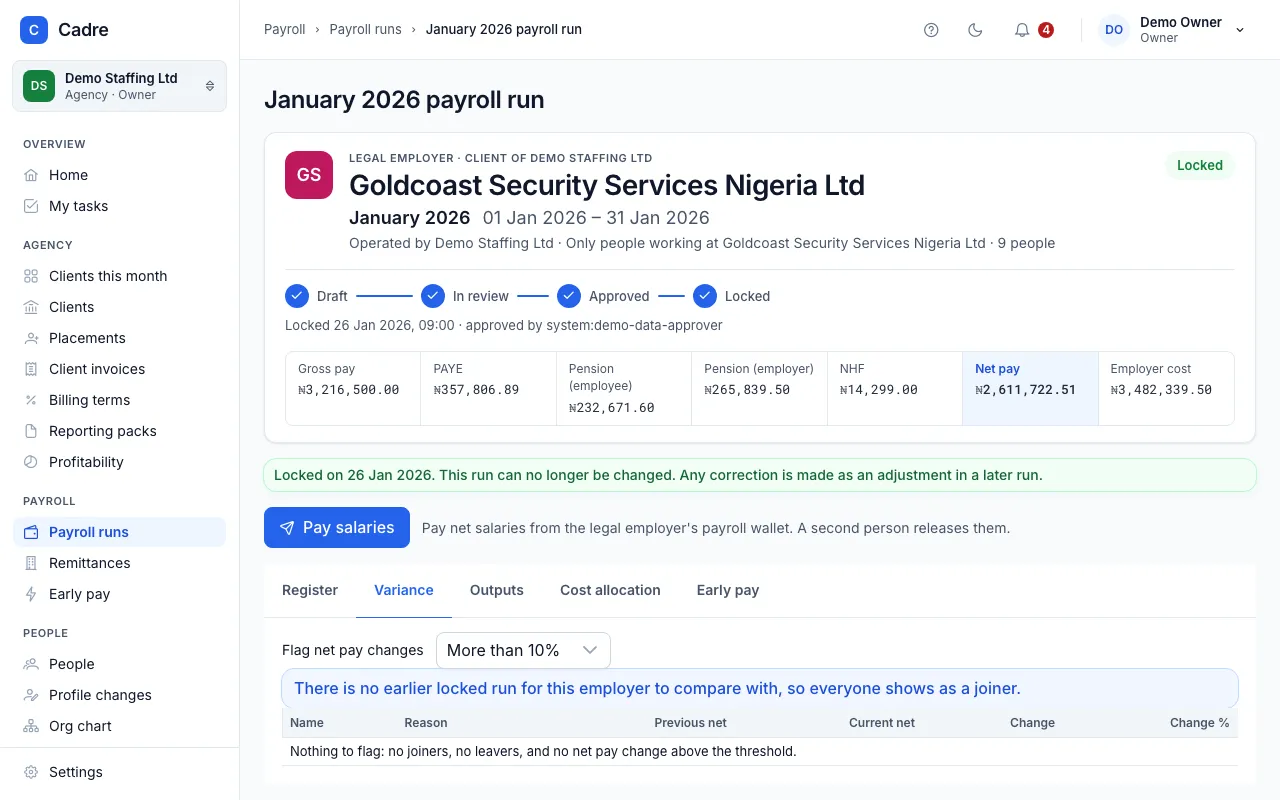
Above the tabs, the run shows its totals: Gross pay, PAYE, Pension (employee), Pension (employer), NHF, Net pay and Employer cost. These are the totals Cadre calculated. A warning also lists anyone left out because they have no pay set.
Check the variance
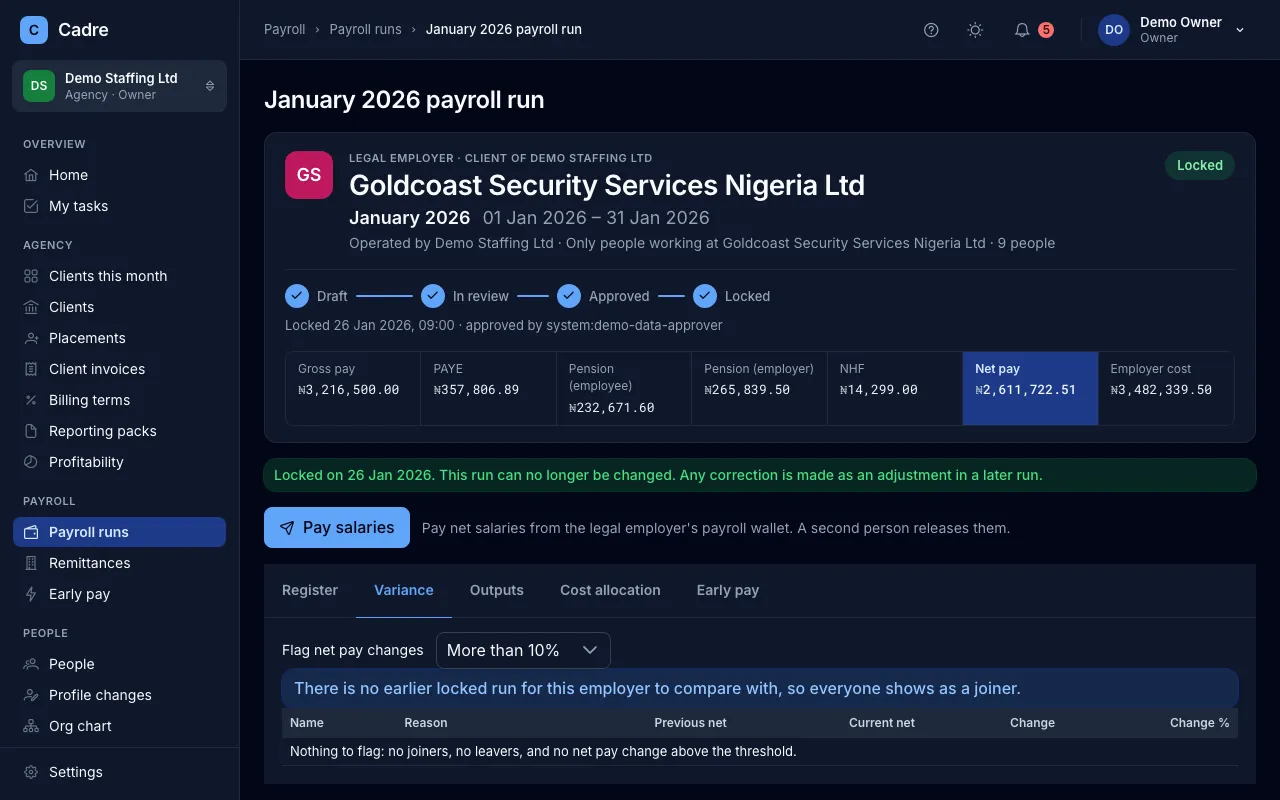
Section titled “Check the variance”The Variance tab compares this run with the last locked run for the same legal employer (and worksite). It flags:
- Joiner: in this run but not the last one;
- Leaver: in the last run but not this one;
- Net pay changed: net pay moved by more than the threshold you choose in Flag net pay changes (5%, 10%, 20% or 50%);
- Benefits in kind changed: flagged even when net pay barely moves, because it changes PAYE.
Look at every flagged line before you submit. If there’s no earlier locked run, there’s nothing to compare with.
Submit for approval
Section titled “Submit for approval”When the register and variance are right, choose Submit for approval. The dialog names the legal employer, the period, the headcount and the total net pay. Check them, then confirm. The run moves to review, and its figures are fixed. Approvers are told it’s waiting.
Return a run for changes
Section titled “Return a run for changes”If something needs to change after submission, a payroll admin chooses Return to draft and says what needs to change. The run goes back to draft with the comment shown at the top, and it can be corrected and calculated again.
An approver who finds a problem can’t return the run. They tell the payroll admin, who returns it.
Approve and lock
Section titled “Approve and lock”- Open the run in review. Check the register, the variance and the totals.
- Choose Approve. The dialog names the legal employer, the period, the headcount and the total net pay. Confirm only if they’re right.
- Choose Lock, and confirm.
You can’t approve a run you submitted yourself, whatever roles you hold.
If the run shows Statutory rates are pending independent review, it can be calculated and compared but not approved yet.
What happens next
Section titled “What happens next”- Final payments in the run are marked paid.
- The Outputs tab opens: payslips, statutory schedules, the bank file, and the register and journal exports. See Payslips and Remittances.
- Pay salaries appears, if your organisation pays salaries through Cadre. See Pay salaries.