
Signing in
You sign in to Cadre once, then choose which organisation to work in. This page covers your first sign-in, everyday sign-in, switching organisations and signing out.
Who can sign in: every member, for themselves.
Your login and your organisations
Section titled “Your login and your organisations”You sign in through Vault, the sign-in service Cadre uses. Your login proves who you are. It does not decide what you can see: your organisations and your roles in each come from Cadre, and are given to you by someone in that organisation.
You can’t create an organisation or join one yourself. Someone in the organisation invites you. For a new organisation, Cadre invites the first owner when it sets the organisation up.
Your first sign-in
Section titled “Your first sign-in”-
Look for the invitation email. It asks you to set up your sign-in. Cadre also emails you to say which organisation you have been added to and with which roles.
-
Follow the link in the invitation and set up your sign-in.
-
Sign in to Cadre. Your invitation is accepted as you sign in, so the organisation that invited you is already there.
If Cadre says No organisation yet, your login is not a member of any organisation. Ask the person who invited you to check the email address they used.
Choosing an organisation
Section titled “Choosing an organisation”After you sign in, Cadre takes you:
- straight to the page you were trying to open, if you followed a link;
- straight into your organisation, if you belong to only one;
- otherwise to Choose an organisation.
On Choose an organisation, each organisation is a card showing its name, whether it is an employer or an agency, and your roles there. The one you used last comes first and is marked Last used. If you belong to more than five, type in Find an organisation to narrow the list.
Tick Open my last organisation next time to skip this screen and go straight to the organisation you used last. You can still switch at any time.
Switching organisations
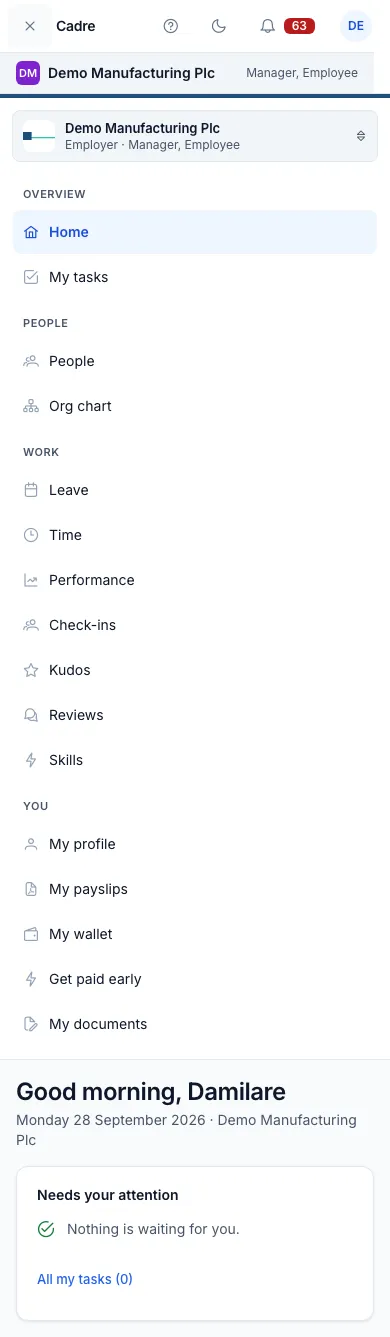
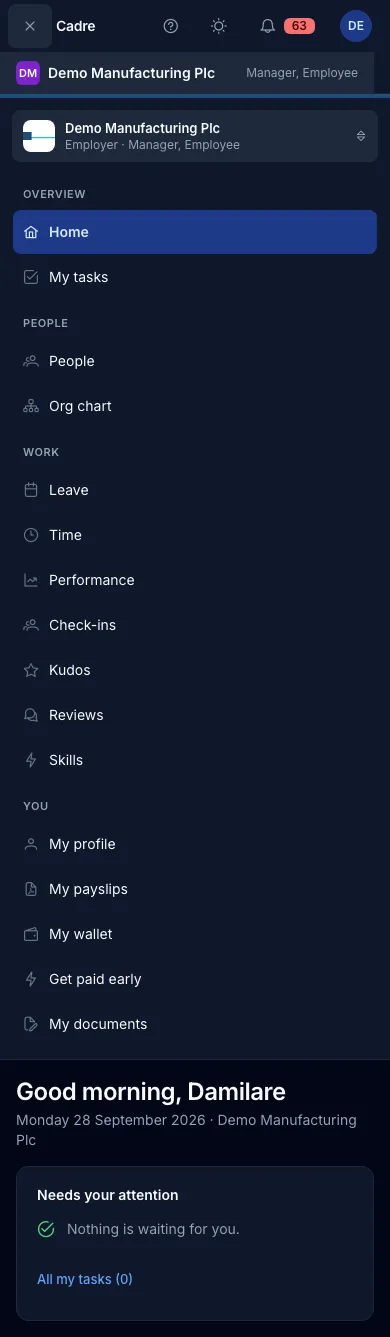
Section titled “Switching organisations”The organisation you are in is always shown at the top of the side menu, with its type and your roles. To change it, do either of these:
- Select the organisation’s name at the top of the side menu.
- Open your account menu (your name, top right) and choose Switch organisation.
Both take you back to Choose an organisation.
On a phone
Section titled “On a phone”Cadre works in your phone’s browser. Sign in the same way. On a phone the side menu folds away behind the Menu button at the top left, and the organisation you are in is shown on its own line under the top bar.
Signing out
Section titled “Signing out”Open your account menu (your name, top right) and choose Sign out. On Choose an organisation there is also a Sign out button, and Not you? signs you out so someone else can sign in.
Signing out ends your session, not just the page. Always sign out on a shared or public computer.