
Members and roles
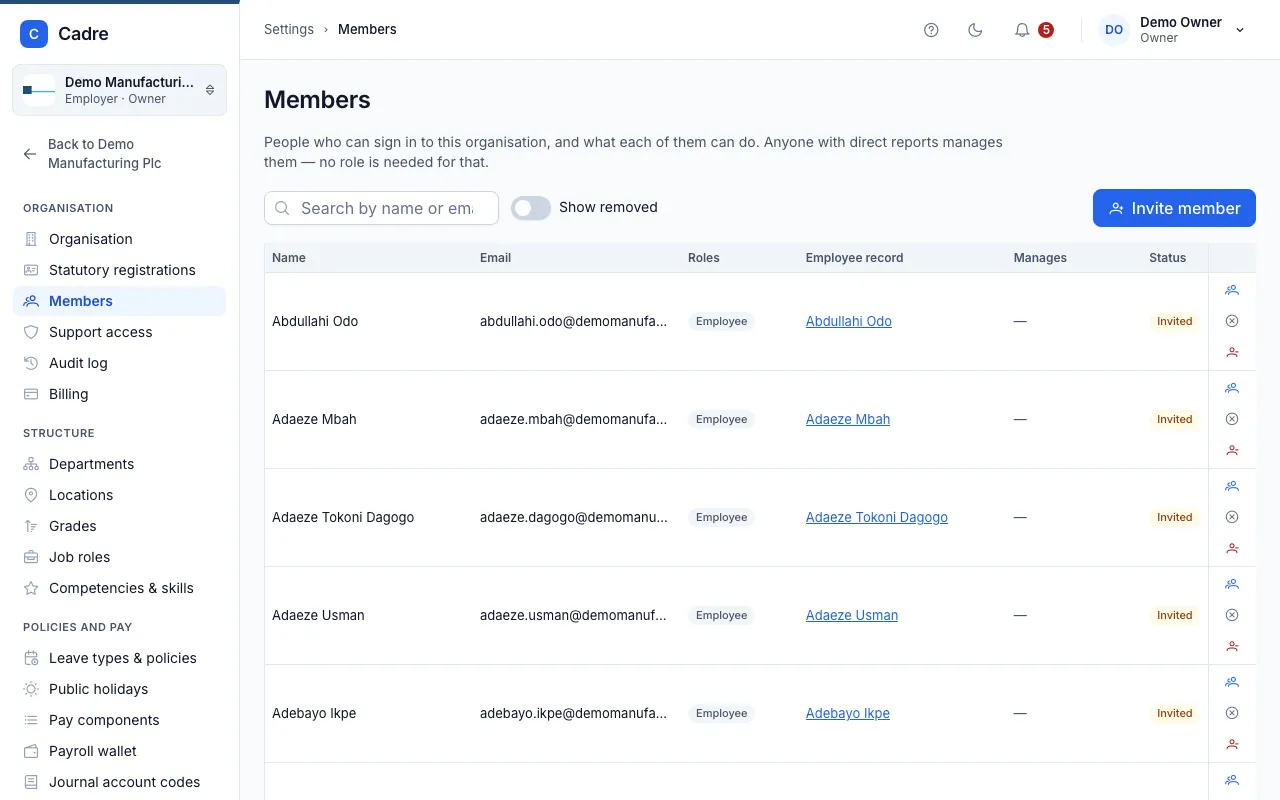
A member is someone who can sign in to your organisation. Settings › Members lists every member, their roles, whether their login is linked to an employee record, and how many people they manage.
Who can invite and manage members: Owner, HR admin.
Payroll admins and payroll approvers can see the list but can’t change it.
Roles you can give
Section titled “Roles you can give”You can give a member one or more of these roles: Owner, HR admin, Payroll admin, Payroll approver and Employee. What each role allows adds up. See Roles for what each one can do.
- Only an owner can make someone an owner, or change or remove another owner.
- You can’t give anyone the Manager role. Whoever has direct reports manages them, with no role needed. The Manages column shows how many people report to each member.
- The organisation must keep at least one owner. Cadre won’t let you remove the last one or take away their Owner role.
Invite a member
Section titled “Invite a member”- Select Invite member.
- Enter their Email, First name and Last name.
- Under Roles, choose one or more roles.
- If they are also one of your employees, tick This person is an employee and choose their employee record. Only records with no login yet are offered. Linking lets them see their own leave, pay and goals.
- For an agency, choose Clients they look after if this member should see only some clients. Leave it empty for every client. See Client access.
- Select Send invitation.
They receive an email to set up their sign-in, and another from Cadre saying which organisation and roles it is for. They join your organisation when they first sign in. Until then, their status shows they are invited. See Signing in.
Send invitations again
Section titled “Send invitations again”Turn on Pending invites to see only the people who haven’t accepted their invitation yet, the longest waiting first. Under each one’s status, Cadre shows when they were invited and when the invitation was last sent.
- One person. Select Resend invite (the send icon) on their row. They get a new link to set their password, and the link in any earlier invitation stops working.
- Everyone waiting. Select Resend all pending. The number beside it is how many invitations are waiting. Cadre asks you to confirm and says how many people will be emailed. The emails go over the next few minutes, and each row shows Being sent again now until its email has gone.
An invitation is sent again at most once every 5 minutes, however many times you select the button. Anyone sent one in the last 5 minutes is skipped, and Cadre tells you how many. If a resend fails, the row says why, and you can send it again.
Only owners and HR admins who look after every client can send invitations again from here. An HR admin who looks after some clients can resend from an employee’s Login tab. See Logins and invitations.
Change a member’s roles
Section titled “Change a member’s roles”- Find the member. Use the search box to search by name or email.
- Select Change roles (the people icon) on their row.
- Choose the roles they should have. They need at least one.
- Select Save roles.
Link a login to an employee record
Section titled “Link a login to an employee record”A member’s login and an employee record are separate things. A member who is also an employee should have their login linked to their record, so they see their own payslips, leave and goals.
- To link one, select Link to employee record on the member’s row, choose the record, and select Link.
- When a member’s email matches an employee record’s, Cadre suggests the pair under These logins may belong to these employees. An email address alone doesn’t prove they are the same person, so link each one only when you know it is. Select Link to confirm.
- To undo a link, select Unlink from employee record, say why, and select Unlink. They stay a member with the same roles, but no longer see that record’s leave, pay or goals. You can’t unlink yourself.
Suspend, reinstate or remove a member
Section titled “Suspend, reinstate or remove a member”| Action | What happens |
|---|---|
| Suspend | They can’t sign in to this organisation until reinstated. |
| Reinstate | Their access returns with the roles they had. |
| Remove | Their access ends now. To bring them back, invite them again. |
You can’t suspend or remove yourself. Removed members are hidden. Turn on Show removed to see them.
Removing a member doesn’t end anyone’s employment. To do that, see Offboarding.