
Import people from a spreadsheet
Use an import when you are moving your staff into Cadre, or taking on a group of workers at once. Cadre checks every row against the same rules as adding one person, and nobody is added until every row is correct.
Who can import people: Owner, HR admin.
At an agency, only a member who looks after every client can import.
Before you start
Section titled “Before you start”- Set up the departments, locations, job roles, levels, grades, clients and worker groups the file will name. A name in the file must match one in Cadre exactly.
- A file can hold up to 2,000 rows and be up to 5 MB, as an Excel workbook (.xlsx) or a CSV file. An older .xls file is refused: save it as .xlsx in Excel first.
1. Download the template
Section titled “1. Download the template”-
Go to People and select Import people.
-
Select Download template.
The template has two sheets:
- Employees, with one column per field. Fill in one row per person, and keep the headings as they are.
- Reference, listing your organisation’s departments, locations, job roles and levels, grades, clients and worker groups, and the accepted contract types, genders and states, spelt exactly as the import accepts them.
The columns
Section titled “The columns”Columns marked with an asterisk in the template are required.
| Column | Notes |
|---|---|
| First name, Last name | Required. |
| Middle name | |
| Staff number | Must be unique in your organisation. |
| Needed for a Cadre login. | |
| Phone | |
| Date of birth | Written YYYY-MM-DD. The person must be at least 15 on their start date. |
| Gender | A value from the Reference sheet. |
| State of residence | A value from the Reference sheet. |
| NIN, BVN | 11 digits each. |
| Start date | Required. |
| Job title | Required. |
| Contract type | Required: Permanent, Fixed Term, Probation, Seconded or Contractor. |
| Department, Location, Grade | A name from the Reference sheet. |
| Job role, Job level | A level needs its job role in the same row. |
| Client, Worker group | For an agency’s workers placed at a client. A worker group needs its client. |
| Cadre login | Yes or No. Blank means No. The invitation goes to the row’s email. |
| Cadre roles | Separated by semicolons, for example Employee; HR admin. Blank means Employee. Only allowed when Cadre login is Yes. |
| Probation | Yes or No. Blank follows your probation policy, as adding one person does. No hires them without probation. Never for a contractor, and only while probation is on. |
| Probation end date | Written YYYY-MM-DD: an end date for this person instead of the policy’s. After the start date and within 12 months of it. Leave Probation blank or Yes. |
Cadre also recognises common alternative headings, such as Surname for Last name or Hire date for Start date, whatever their case and spacing.
2. Upload your file
Section titled “2. Upload your file”Under Upload your file, select Choose file and pick your file. Cadre checks every row straight away.
If the file itself can’t be used, Cadre tells you why before checking any rows: for example, a required column is missing, the file has no rows, or it has more than 2,000.
3. Review the rows
Section titled “3. Review the rows”The review shows how many Rows the file has, how many are Ready to import, and how many are With errors.
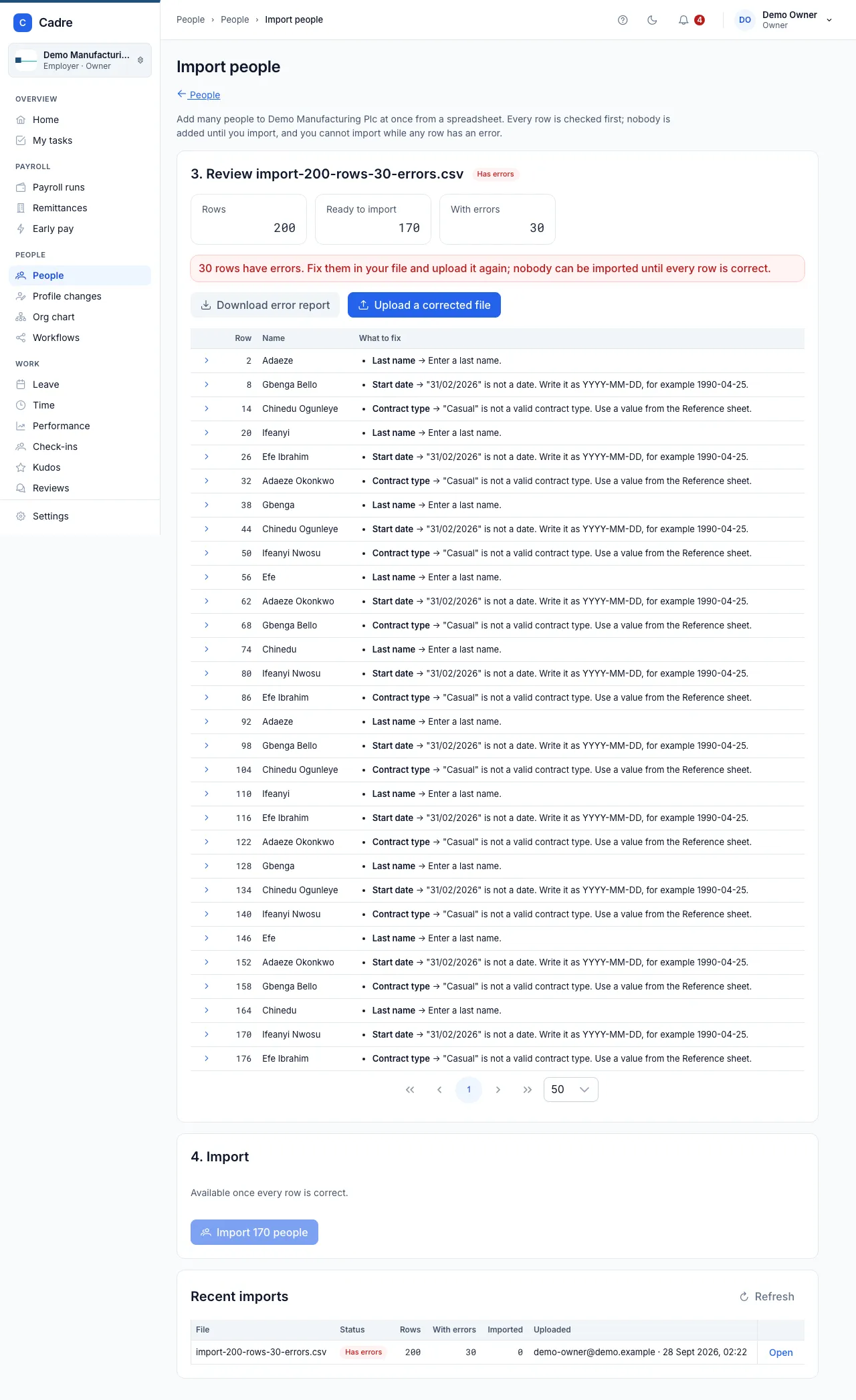
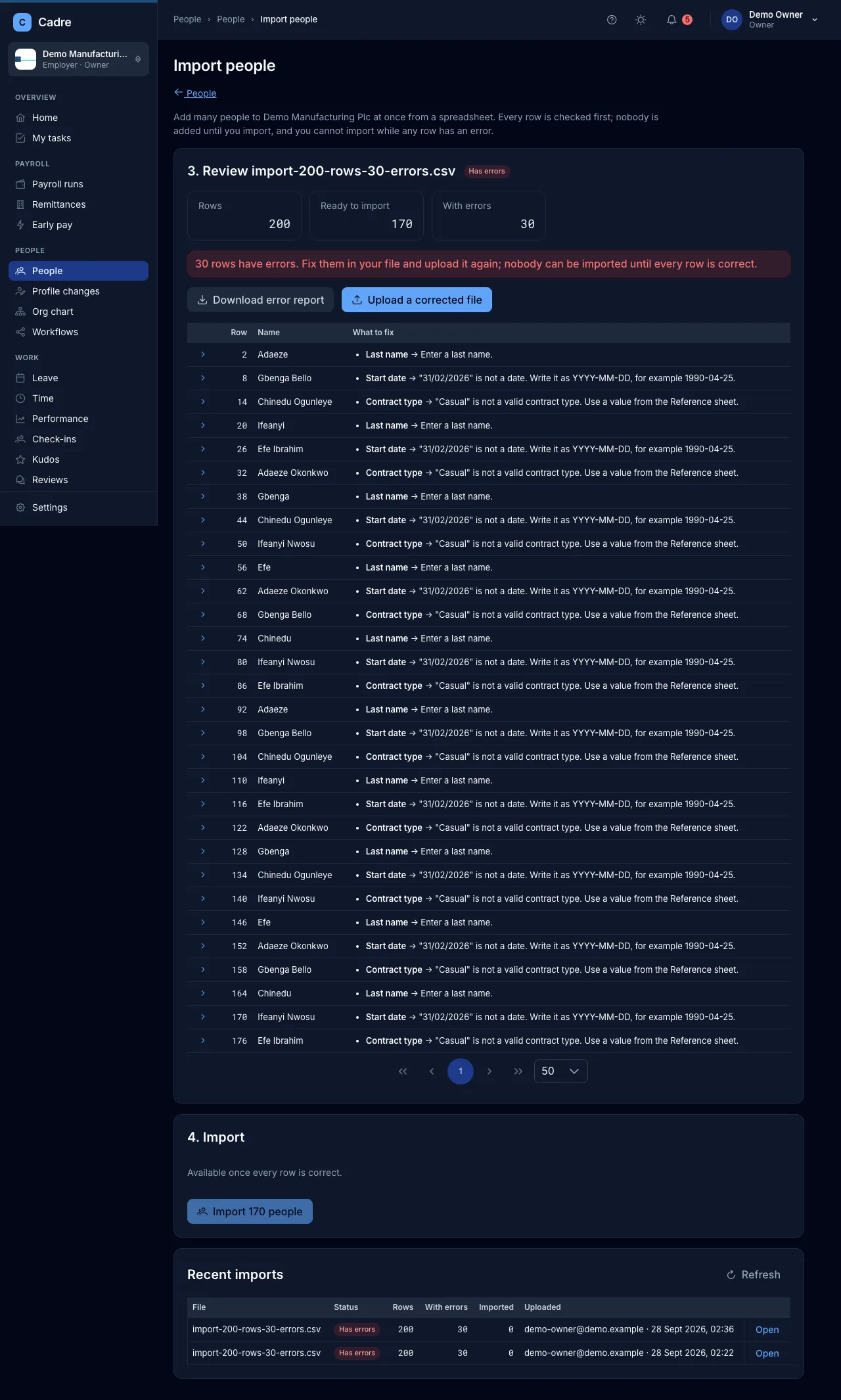
Each row with an error is listed with its row number, the person’s name, and What to fix, column by column. Open a row to see every value Cadre read from it.
When some rows start before today, the review also shows how many are Existing employees, and lists them with the note Existing employee: no onboarding. See Existing employees.
Common errors:
- A name that doesn’t match the Reference sheet, for example a department that doesn’t exist.
- The same staff number, NIN, BVN or email on two rows. Every such row is flagged, naming the other rows.
- Someone who already works for your organisation.
- Cadre roles filled in without Cadre login set to Yes.
- Probation or Probation end date filled in on a contractor’s row, or while probation is switched off in Settings → Probation. Leave both blank on those rows. With probation off, someone on the Probation contract type still starts on probation; set their end date on their profile afterwards.
- A Probation end date on or before the start date, more than 12 months after it, or beside Probation set to No.
Fix and upload again
Section titled “Fix and upload again”-
Select Download error report to get the rows with their errors.
-
Fix them in your file.
-
Select Upload a corrected file and upload it.
You can’t import part of a file. You can only import once every row is correct, so that you never have to work out who was added and who wasn’t.
4. Import
Section titled “4. Import”-
When every row is correct, select Import followed by the number of people.
-
Check the organisation’s name in the confirmation, then select Add to confirm.
Cadre checks every row once more just before adding them, because your organisation’s data may have changed since you uploaded. If a row no longer passes, nothing is imported: download the error report, fix those rows, and upload the file again.
Each person is added with the start date and engagement in their row. Every active workflow that starts When someone is hired starts for each new joiner, but not for existing employees.
Existing employees
Section titled “Existing employees”When you move staff who already work for you into Cadre, they don’t need onboarding. Cadre treats a row as an existing employee when its start date is before the day you import it (in Nigerian time). A start date of today or later is a new joiner.
For an existing employee:
- No onboarding. No workflow that starts When someone is hired starts for them, so nobody gets joiner tasks, contracts to sign or welcome steps for them.
- Their Cadre login invitation is still sent, when Cadre login is Yes.
- Probation. With Probation and Probation end date left blank, Cadre works out the end date from your probation policy. If that date is today or earlier, their probation is already over: no probation is opened, no review starts, and nothing shows as overdue. If it is still ahead (for example, they started six weeks ago on a three-month policy), they stay on probation until that date.
- Your own values always win. Probation set to No means no probation. Yes with a Probation end date uses your date.
- On the Probation contract type, with the policy’s end date already past, the person is still on probation, because the row says so. Cadre never invents a date: their probation waits under No end date in People → Probations for you to set one.
The finished import says how many existing employees were added without onboarding, and each of their rows carries the note.
Cadre login invitations
Section titled “Cadre login invitations”When an import includes rows with Cadre login set to Yes, the invitations are sent after the import, in the background, one row at a time. The import doesn’t wait for them, and an invitation that can’t be sent never undoes the import.
The Cadre login invitations section of the finished import lists each row:
- Invited: the invitation was sent, and when.
- Pending: waiting to be sent. If a try failed, it says why and when Cadre tries again.
- Failed: Cadre gave up, with the reason and the number of tries.
Cadre retries a failed invitation by itself a few times, waiting longer each time. It gives up at once when retrying can’t help, for example when the login already belongs to someone else in your organisation.
Select Refresh to see the latest. To try the failed ones again, select Try the failed ones again. It is safe to use more than once.
Recent imports
Section titled “Recent imports”Recent imports, at the foot of the page, lists every import with its status, row counts and who uploaded it. Select Open to go back to one, including a finished import’s invitations.